Connecting Claude AI to Flowfinity with MCP Integration
MCP (Model Context Protocol) is an open standard developed by Anthropic that allows external AI assistants like Claude to connect with data sources and tools. When you connect Claude AI to Flowfinity through MCP, Claude can query your Flowfinity data and execute operations on your behalf—all through natural language conversation.
For example, organizations can automate extracting receipt data for expense claims. When an employee uploads a receipt image or PDF, Claude AI reads the document and extracts the supplier name, expense date, net amount, taxes, and currency. The extracted values populate the corresponding fields in the Flowfinity expense form.
This is one of many possible applications. Any Flowfinity view or operation enabled through MCP can be accessed by Claude AI, allowing automation across data collection, approvals, reporting, and record management workflows.
Prerequisites
- Flowfinity Actions Enterprise Edition
- Flowfinity Reverse Proxy installed and configured
- Administrator access to your Flowfinity Actions site
- A Claude AI account supporting custom connectors
How MCP Works
Flowfinity acts as an MCP server, making selected views and operations available as tools that Claude can invoke. In MCP, tools are discrete, callable functions that the server provides to the AI client—each tool has a name, a description, and a defined set of inputs and outputs. When users interact with Claude, the AI can retrieve data from your applications and submit changes on behalf of authenticated users.
The integration uses two layers of security. First, Claude authenticates to Flowfinity using a Client Secret generated during setup. Second, each user must authenticate with their own Flowfinity credentials, ensuring standard permissions control what records they can access.
Step 1: Enable MCP Surface Configuration
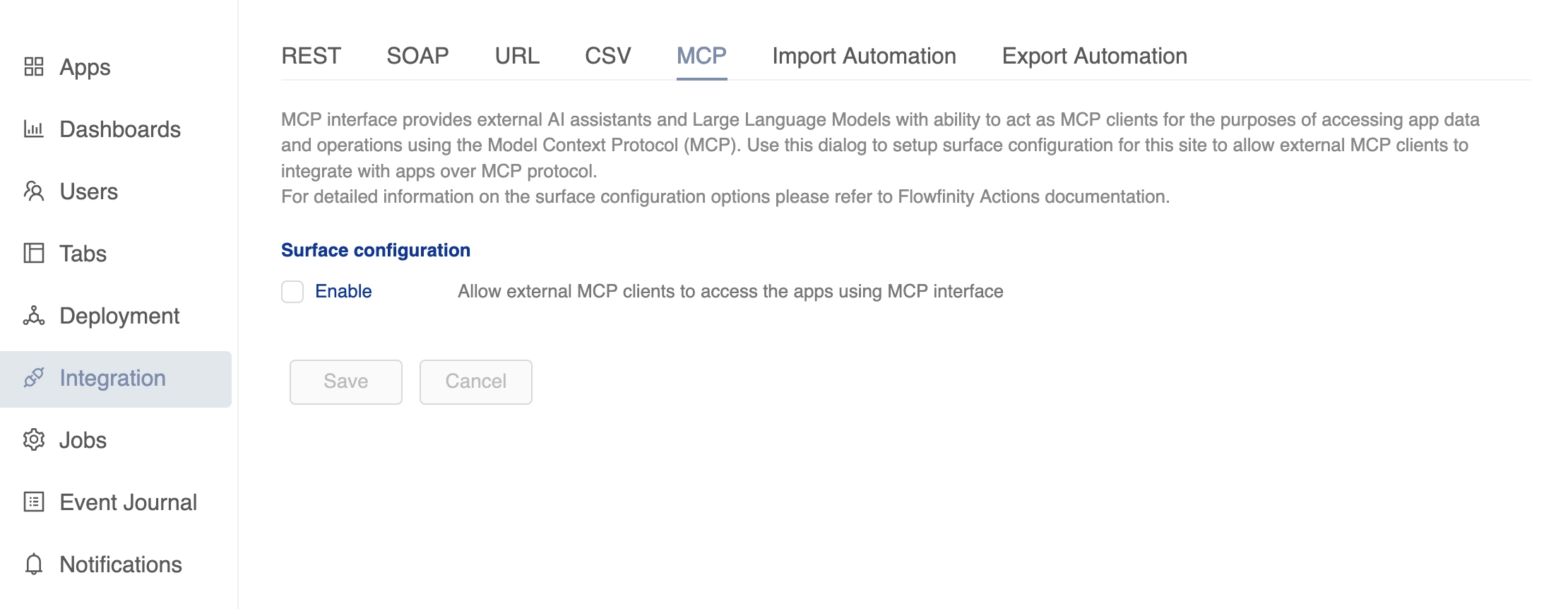
Navigate to Configure > Integration > MCP and enable the checkbox to allow external MCP clients to access your apps. Save your changes.
Once enabled, this page displays the MCP server URL you will need when connecting to Claude later.
Step 2: Enable Views and Operations for AI Access
For each application you want to enable via MCP, customize the app and enable specific views and operations.
To enable an operation:
- Open the app for customization and navigate to the desired operation.
- Open the operation for editing and switch to the Integration tab.
- Check "Enable AI assistants and LLM to invoke this operation through MCP".
- Review the auto-generated AI description and AI instructions fields.
- Publish the app.
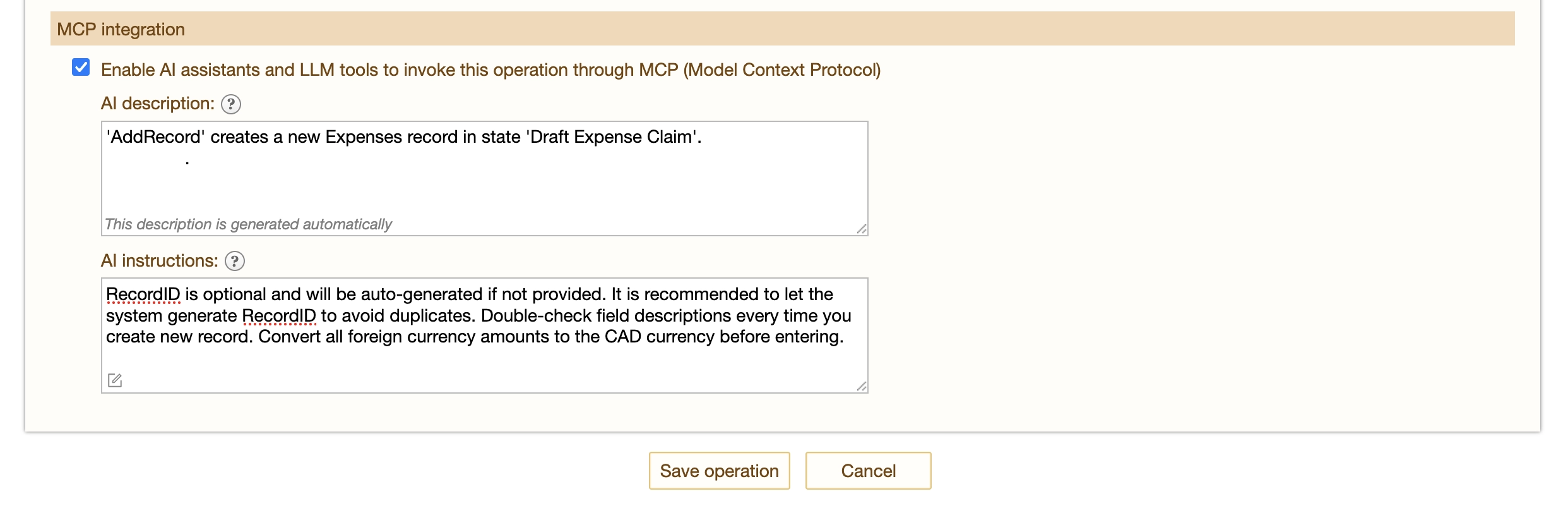
To enable a view:
- Open the app for customization and navigate to the desired view.
- Open the view for editing and switch to the Integration tab.
- Check "Allow AI assistants and LLM tools to access this view through MCP".
- Select the data format (View Columns is recommended to minimize context usage).
- Review the AI description and AI instructions fields.
- Publish the app.
Step 3: Register an MCP Client
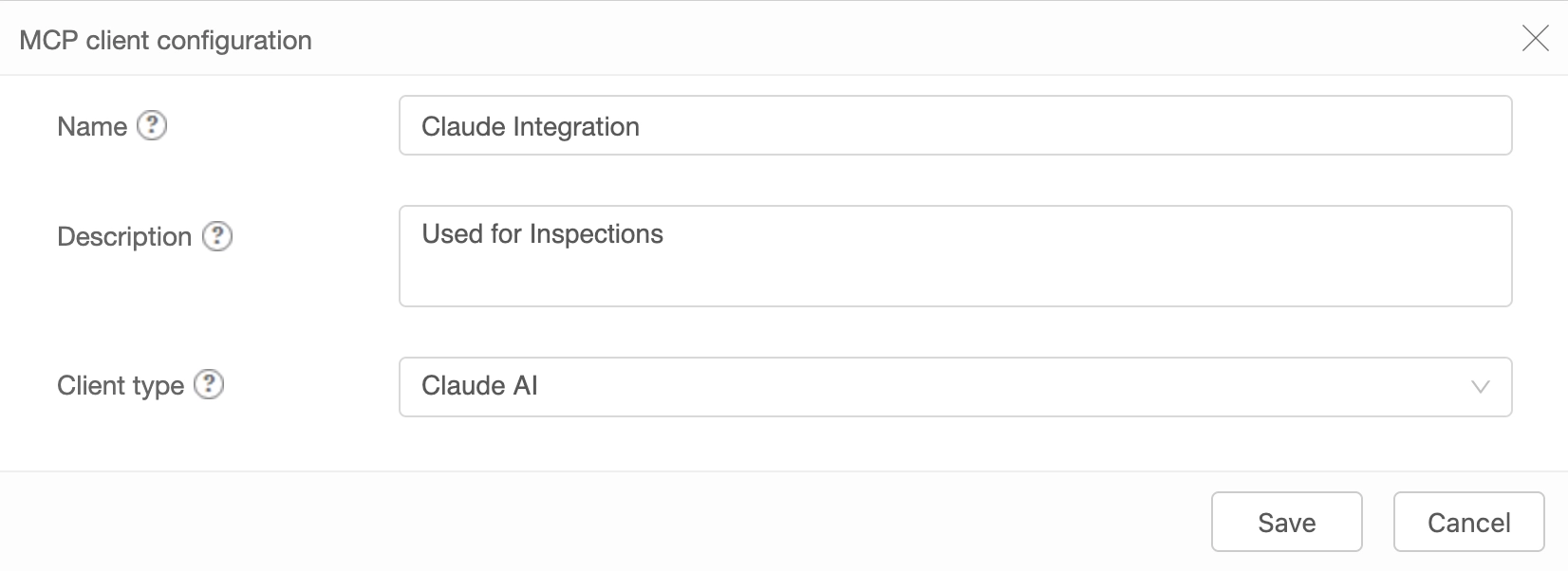
Return to Configure > Integration > MCP and click Add MCP Client.
Enter a name to identify this client in Flowfinity. Select Claude AI as the client type and save.
After saving, use the View Activation Information context menu to display the MCP server URL, Client ID, and Client Secret. You will need these values in the next step.
Step 4: Register the MCP Server in Claude
In Claude, navigate to Admin settings > Connectors and click Add Custom Connector.
Enter a name for the connector (for example, "Flowfinity Expense Claims"), then paste the MCP server URL, Client ID, and Client Secret from Flowfinity. Click Add to register the connector.
Step 5: Connect Claude Users to Flowfinity
Each Claude user must authenticate with their Flowfinity credentials before using the tools.
Navigate to Settings > Connectors (not Admin settings) and click Connect next to the newly added connector. When prompted, enter your Flowfinity username and password.
Once connected, the tools become available in Claude chats. You can ask Claude to query records, create new entries, or perform operations—all using natural language.
Auditing AI-Assisted Changes
Language models can make mistakes. Flowfinity maintains complete record modification history, and changes made via MCP are flagged with an identifying icon in the record history. This makes it easy to identify and review AI-assisted modifications.

Best Practices
Write clear AI descriptions. The AI description field explains what each view or operation does. Clear descriptions help Claude choose the right tool for each request. While Flowfinity generates these automatically, refining them improves accuracy.
Use view parameters. Views can return thousands of records, quickly exhausting Claude's context window. Add parameters to your views so Claude can filter results in the database before returning them.
Set data format to View Columns. Unless you specifically need nested field data, configure views to return columns only. This significantly reduces the amount of data sent to Claude.
Enable approval for write operations. In Claude's connector settings, set write/delete tools to "Needs approval" mode. This lets you review each request before it executes, catching potential mistakes in real-time.
Keep only needed connectors active. Each connected tool's metadata consumes context space. Disconnect connectors you are not actively using to extend your session.
Troubleshooting
Connector does not appear in Claude: Ensure your Claude AI account supports custom connectors.
Authentication fails: Verify the Client ID and Client Secret were copied correctly. Check that the MCP client registration in Flowfinity shows "Activated" status.
Claude cannot find tools: Confirm the app is published and that views/operations have MCP integration enabled. The surface configuration must also be enabled at the site level.
Unexpected results from Claude: Review and refine your AI description and AI instruction fields. Clear, specific instructions produce more accurate outcomes.