Enable Flowfinity Multi-Factor Authentication (MFA)
Multi-factor authentication (MFA) adds an extra layer of security to user accounts by requiring a time-based token code in addition to the standard username and password. This article explains how administrators can enable and manage MFA for Web and Device users in Flowfinity.
Prerequisites
- Flowfinity Actions Enterprise Edition
- Flowfinity Reverse Proxy installed and configured
- Administrator access
Overview
Once MFA is enabled for an account, users must supply a secure token code after successful password-based login. Flowfinity supports two types of token generators:
Authenticator apps – Mobile or desktop software such as Google Authenticator, Microsoft Authenticator, or Authy. Users can set up an authenticator app independently.
Hardware token keys – Physical devices that generate time-based codes. Hardware tokens must be pre-registered by an administrator before users can select them.
Instructions: Enable MFA for a User
-
Click on the Configure tab.
Note: Switch to the appropriate site first. - Under the Users section, locate the user account and click Edit, or click Add User to create a new account.
- In the user dialog, locate the Multi-factor authentication slider and set it to the ON position (default is OFF).
-
Set the Enforcement delay value:
- 0 days – MFA setup will be required on the user's next login with no grace period.
- Positive value (e.g., 3 days) – Gives the user a grace period to set up MFA at their convenience. If they don't complete setup before the grace period expires, they will be required to complete MFA activation on their next login attempt.
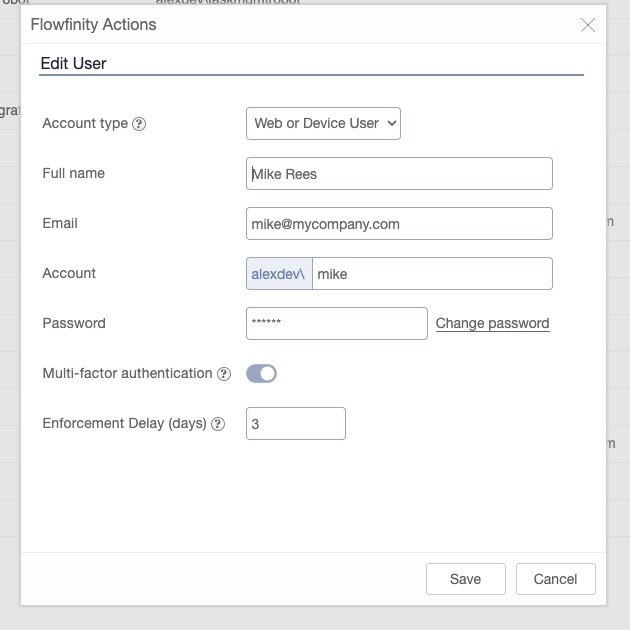
- Click Save to apply the changes.
What happens next for the user
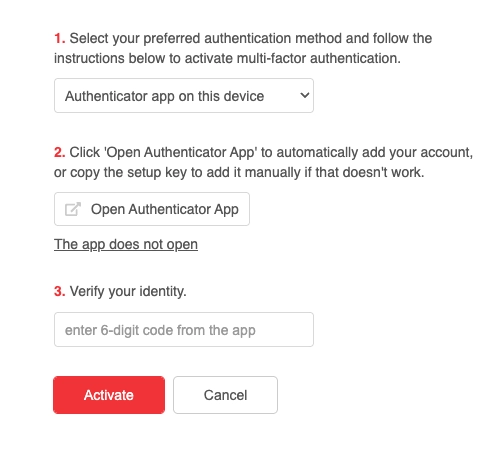
When a user with MFA enabled logs in, they will be prompted to activate MFA. During activation, users can choose between:
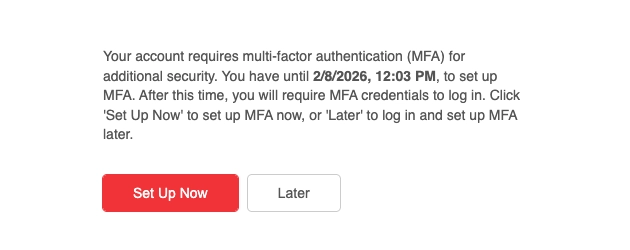
- Authenticator app – Scan a QR code or enter a secret key manually to set up their authenticator.
- Hardware token – Select from hardware tokens that have been pre-registered by the administrator.
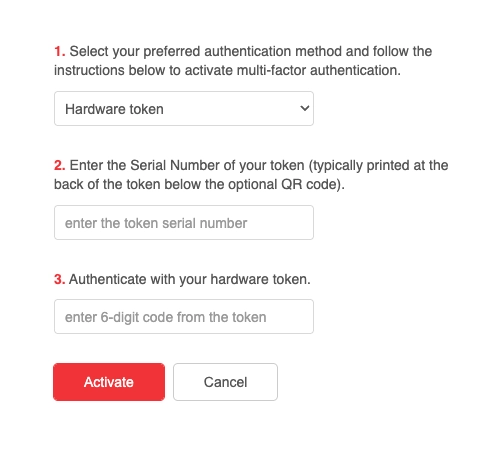
After selecting their preferred method and entering the 6-digit verification code, MFA activation is complete. Users will need to enter a fresh token code from their chosen device each time they log in.
Monitor MFA Status
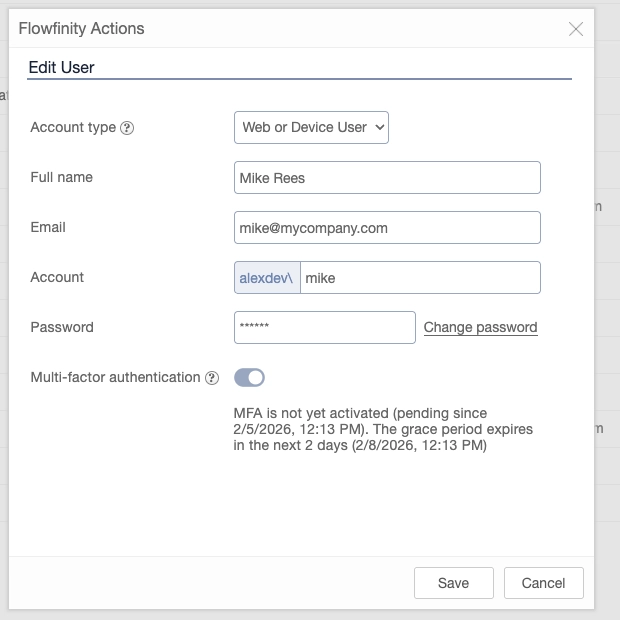
Administrators can review the MFA activation status for any user account by opening the Edit user dialog and checking the status message displayed below the MFA switch. This shows whether MFA has been activated, and if disabled, when it was turned off.
Reset MFA for a User
If a user loses access to their authenticator app (e.g., they uninstall the app or lose their phone/hardware token), an administrator must reset their MFA:
- Open the user's account in Configure > Users.
- Slide the Multi-factor authentication toggle to OFF.
- Click Save.
- Slide the toggle back to ON.
- Set the appropriate enforcement delay and click Save.
The user will be prompted to set up MFA with a new authenticator on their next login.
Using Hardware Tokens (Optional)
If your organization uses hardware token keys instead of authenticator apps, you must register them before users can activate MFA:
- Ensure you are on the Public Site if your installation has multiple sites.
- Navigate to Configure > MFA Hardware.
- Click Register Token for individual tokens, or Import Tokens to upload a CSV file from the manufacturer.
- Enter the required information provided by the hardware vendor:
- Name – A friendly name for the token
- Serial number – Printed on the hardware key
- Time interval – How often the key refreshes codes (in seconds)
- Model – The token model
- Secret key – The unique key provided by the vendor
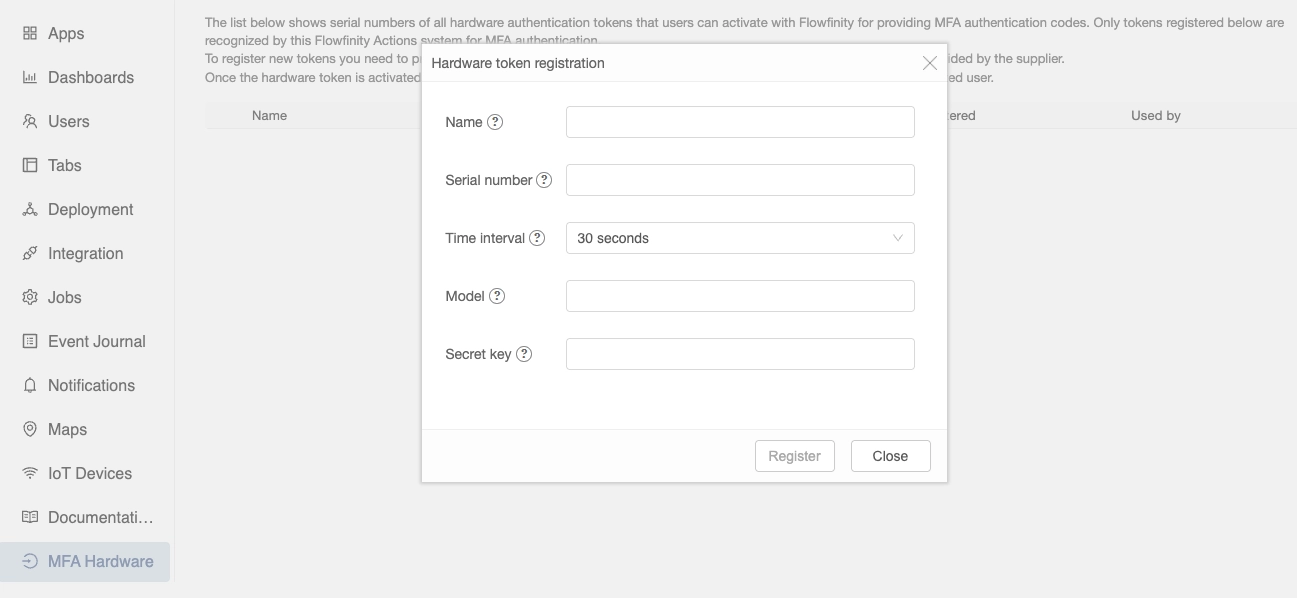
- Click Register.
Once registered, distribute the hardware token to the user. The MFA Hardware list will show which user is associated with each token after activation.
App-based User Management
If you use a User Account Management application to manage users, MFA settings are available through system fields in the user management app form, including multi-factor authentication toggle, status, and enforcement delay fields.
For more information on setting up Multi-Factor Authentication please contact Flowfinity support.